> ## Documentation Index
> Fetch the complete documentation index at: https://chatbase.co/docs/llms.txt
> Use this file to discover all available pages before exploring further.
# Custom Button
> Send customers a clickable button that links to any page you choose, right inside the conversation
## Overview
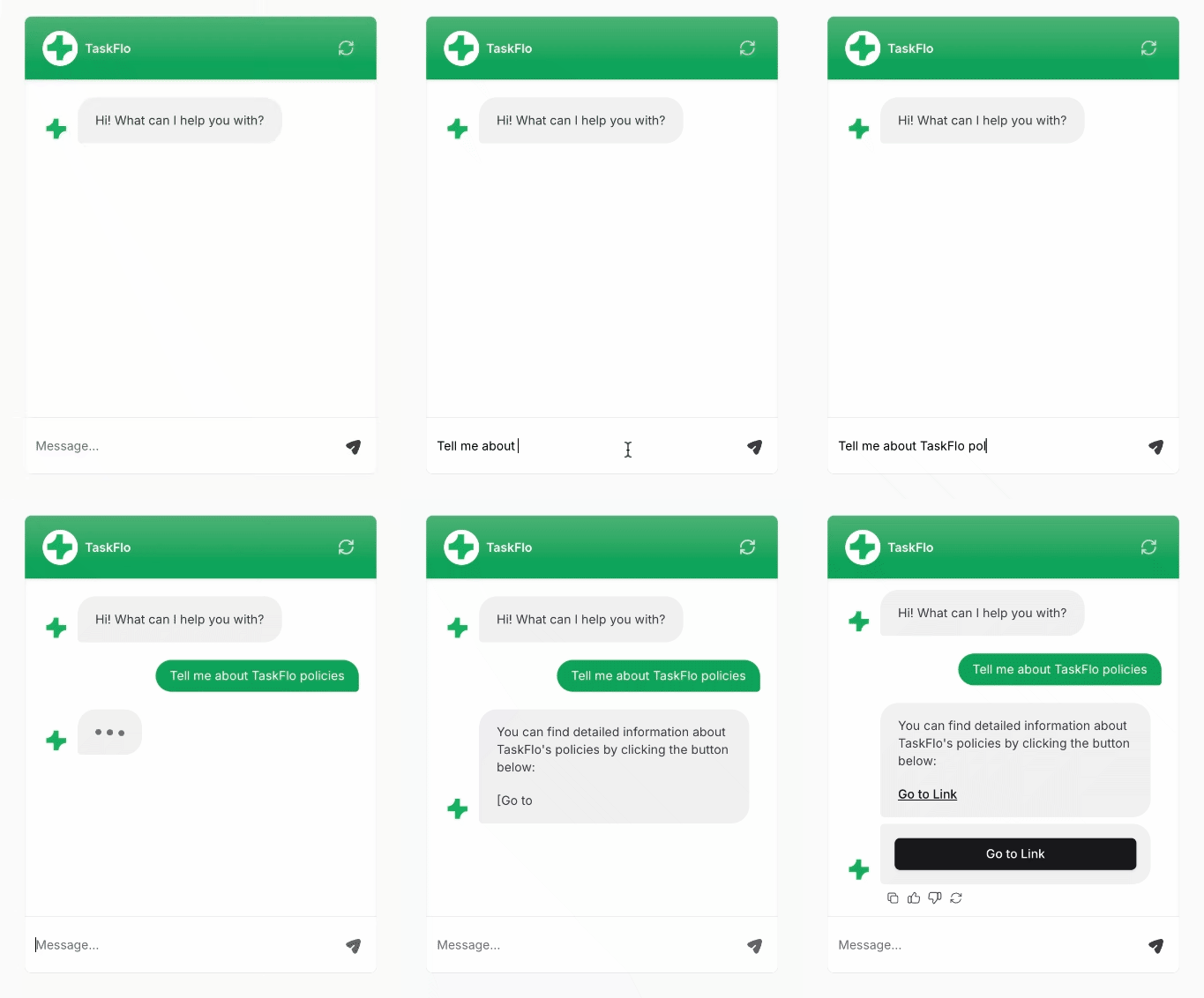
The Custom Button action lets your AI agent send a clickable button to the customer when they ask about a specific topic. You choose the button text and the URL it opens, and the AI agent decides when the button is worth showing.
Pointing customers to a pricing page, a booking form, a downloadable guide, or any destination that answers a question better than text does.
**Common Use Cases:**
* "What are your pricing plans?"
* "Where can I download the app?"
* "How do I contact sales?"
## How to create the action
Go to your [Chatbase dashboard](https://www.chatbase.co/dashboard/) and select your AI agent. Click **Build > Actions** in the left sidebar.
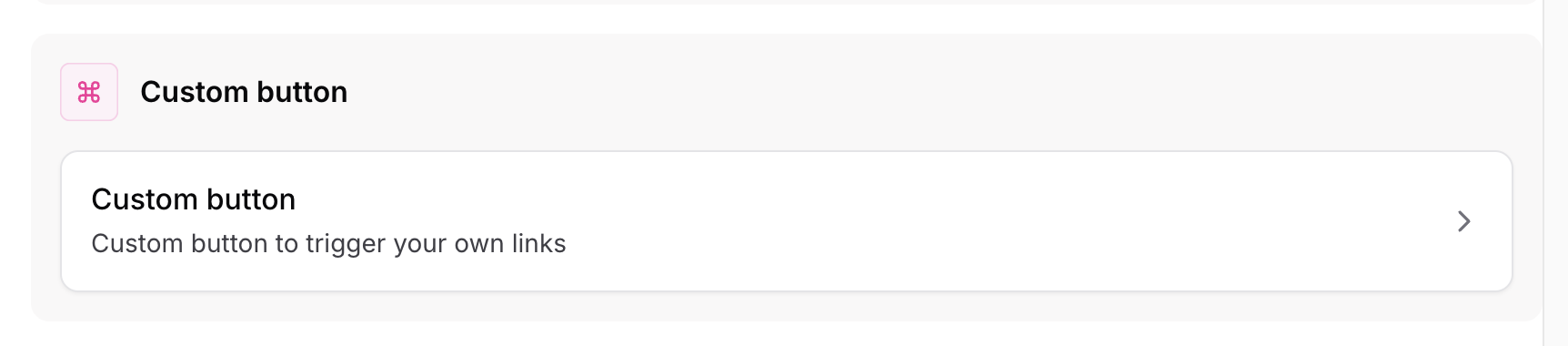
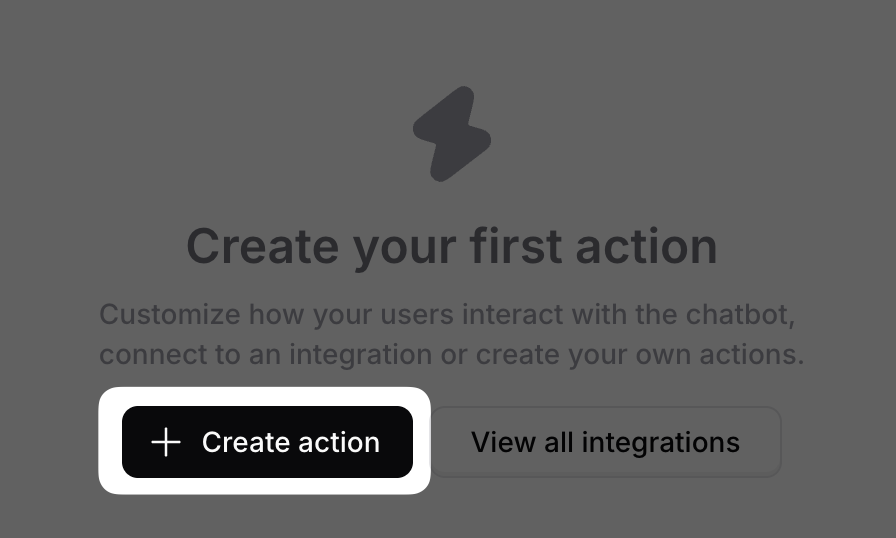 Click **Create action**, scroll down, and select **Custom Button**.
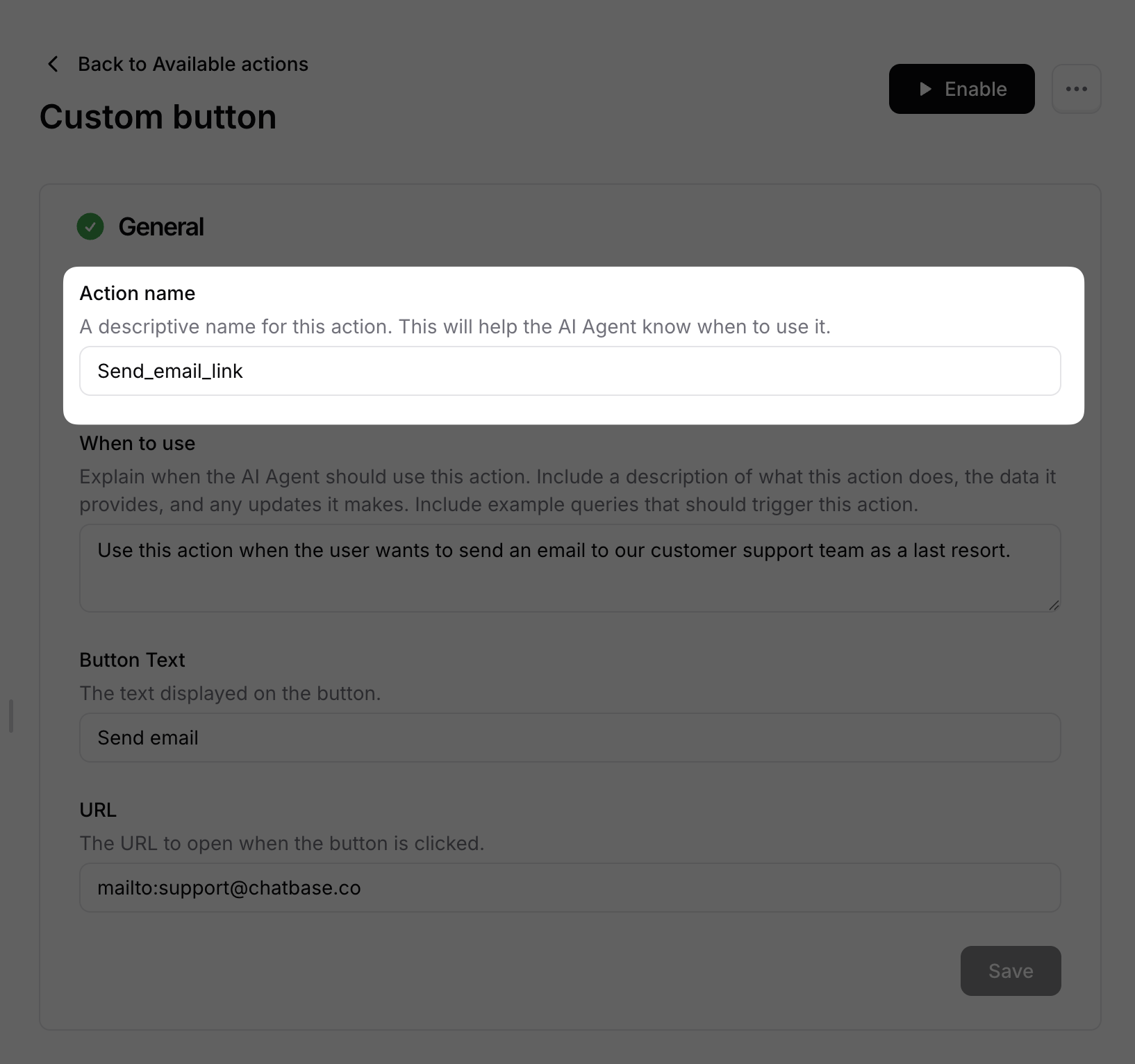
 **Action Name:** A descriptive name for the action. This name is only shown in the dashboard.
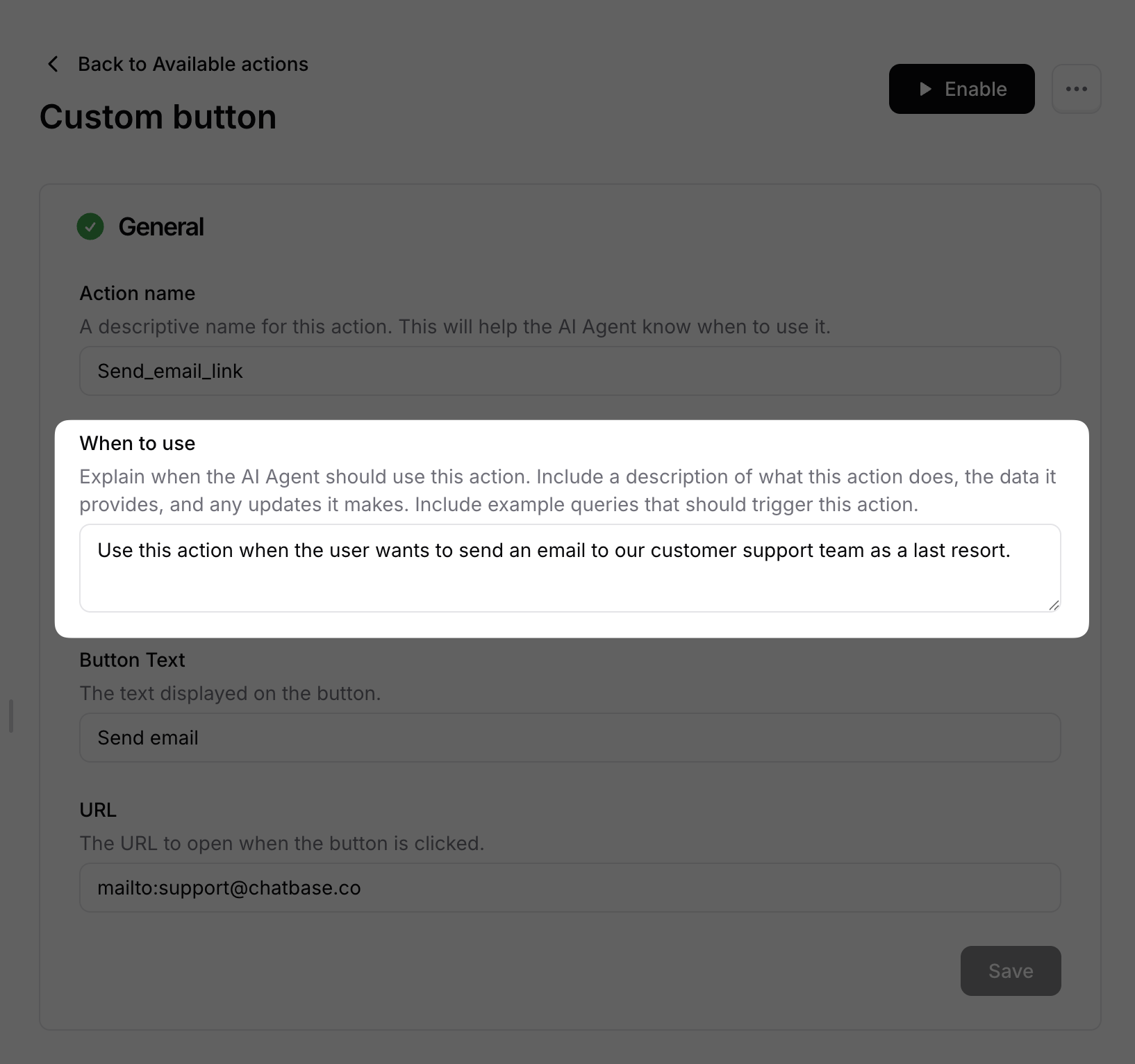
 **When to use:** A detailed description explaining when the AI agent should send the button. Include examples of the customer queries it should answer.
To restrict the action to [procedure](/docs/user-guides/chatbot/procedures/procedures-overview) steps only, turn on [**Only use in procedures**](/docs/user-guides/chatbot/actions/actions-overview#only-use-in-procedures). When it's on, the **When to use** field is hidden, because the AI agent no longer decides when to call the action.
**When to use:** A detailed description explaining when the AI agent should send the button. Include examples of the customer queries it should answer.
To restrict the action to [procedure](/docs/user-guides/chatbot/procedures/procedures-overview) steps only, turn on [**Only use in procedures**](/docs/user-guides/chatbot/actions/actions-overview#only-use-in-procedures). When it's on, the **When to use** field is hidden, because the AI agent no longer decides when to call the action.
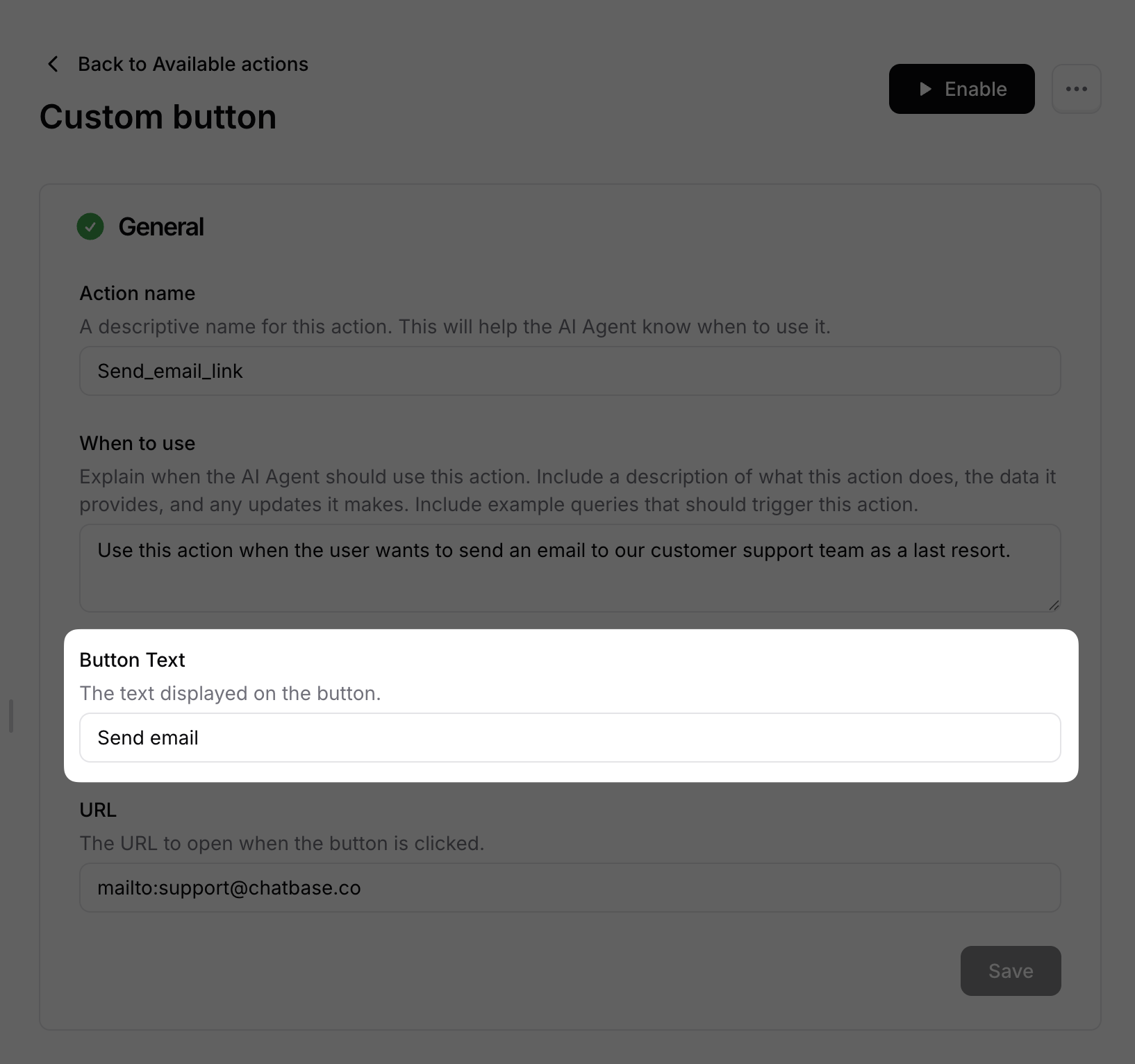
 **Button text:** The text shown on the button the customer sees.
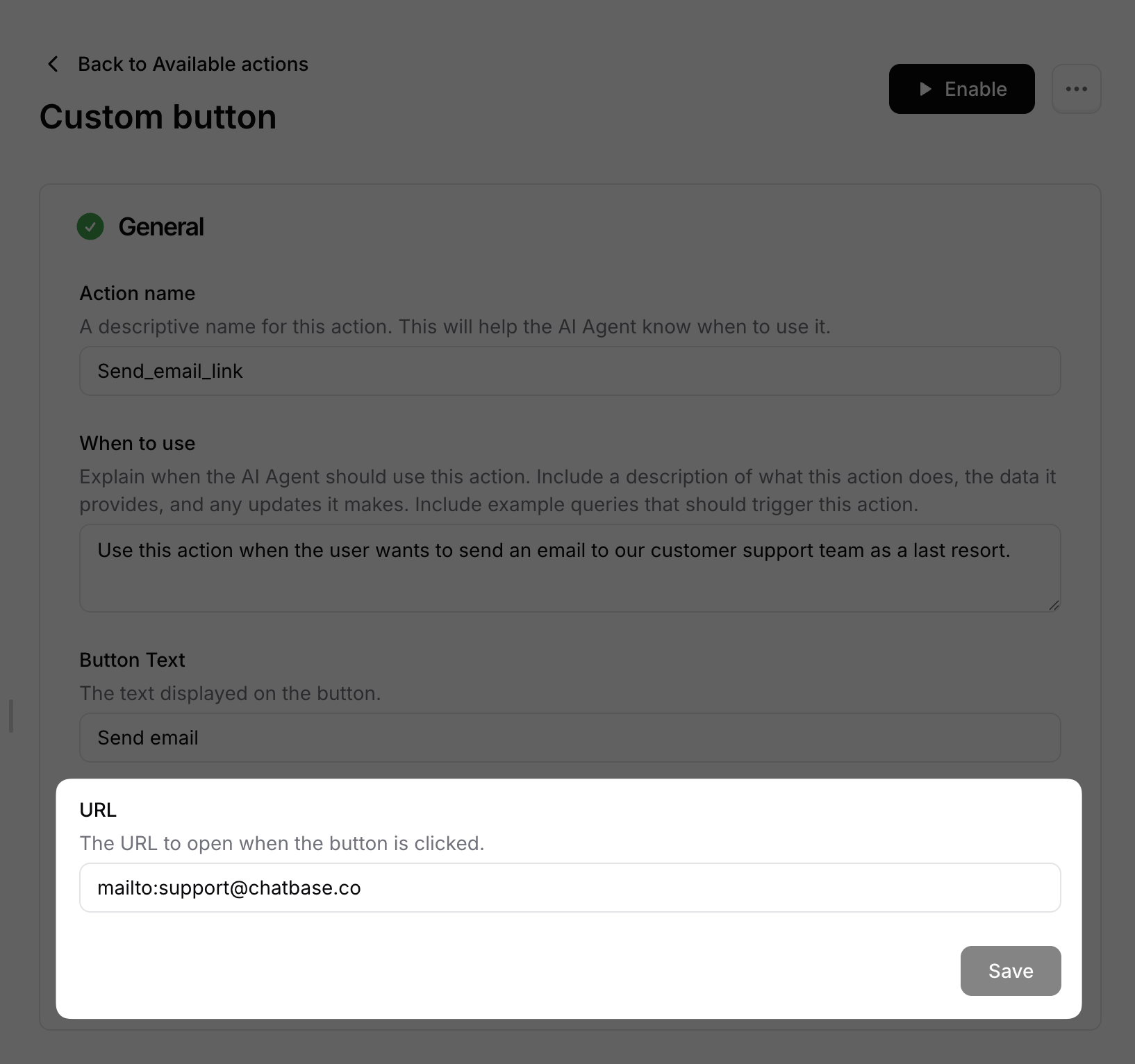
 **URL:** The destination the button opens.
 Use **Channels** to control where the action is available. Toggle the action on or off for each configured channel, then click **Save**. Some channels may be incompatible with the action and won't be available for selection.
Click **Save**, then enable the action from the toggle in the top-right corner of the page.
Test the action in the Playground before enabling it, to confirm the AI agent sends the button with the right URL when your instructions are met.
## Examples
A **When to use** description that tells the AI agent both what to say and when to attach the button:
```text theme={null}
Provide the user a button when they ask about the pricing plans, the difference
between any of Chatbase plans or the features available in each one. For example,
when the user asks about the number of AI agents in the standard plan, you should
let him know that the plan offers 5 AI agents and provide the button of the
pricing page.
```
Use **Channels** to control where the action is available. Toggle the action on or off for each configured channel, then click **Save**. Some channels may be incompatible with the action and won't be available for selection.
Click **Save**, then enable the action from the toggle in the top-right corner of the page.
Test the action in the Playground before enabling it, to confirm the AI agent sends the button with the right URL when your instructions are met.
## Examples
A **When to use** description that tells the AI agent both what to say and when to attach the button:
```text theme={null}
Provide the user a button when they ask about the pricing plans, the difference
between any of Chatbase plans or the features available in each one. For example,
when the user asks about the number of AI agents in the standard plan, you should
let him know that the plan offers 5 AI agents and provide the button of the
pricing page.
```
 ## Best Practices
Each action carries a single URL. If you need to link to several pages, create a separate Custom Button action for each.
Tell the AI agent to answer the question in text and attach the button as a next step, so the customer isn't sent away for information the AI agent already has.
Use a few words that name the destination, such as **See pricing** or **Book a demo**.
Try the action in the Playground and confirm the button appears for the queries you expect, and not for the ones you don't.
## Best Practices
Each action carries a single URL. If you need to link to several pages, create a separate Custom Button action for each.
Tell the AI agent to answer the question in text and attach the button as a next step, so the customer isn't sent away for information the AI agent already has.
Use a few words that name the destination, such as **See pricing** or **Book a demo**.
Try the action in the Playground and confirm the button appears for the queries you expect, and not for the ones you don't.