> ## Documentation Index
> Fetch the complete documentation index at: https://chatbase.co/docs/llms.txt
> Use this file to discover all available pages before exploring further.
# Web Search
> Give your AI agent real-time web search so it can answer questions your training sources don't cover
## Overview
The Web Search action lets your AI agent browse the web during a conversation and feed the results back into its reply. Use it as an additional source of information for questions your training sources don't answer, and restrict it to the sites you trust.
Answering questions that depend on live or fast-changing information, and filling gaps your training sources don't cover.
**Common Use Cases:**
* Questions about information that changes too often to keep in a training source
* Topics covered on your industry's reference sites but not on your own
* Follow-up questions the AI agent can't answer from your sources alone
 ## How to create the action
Go to your [Chatbase dashboard](https://www.chatbase.co/dashboard/) and select your AI agent. Click **Build > Actions** in the left sidebar.
Click **Create action**, then select **Web Search**.
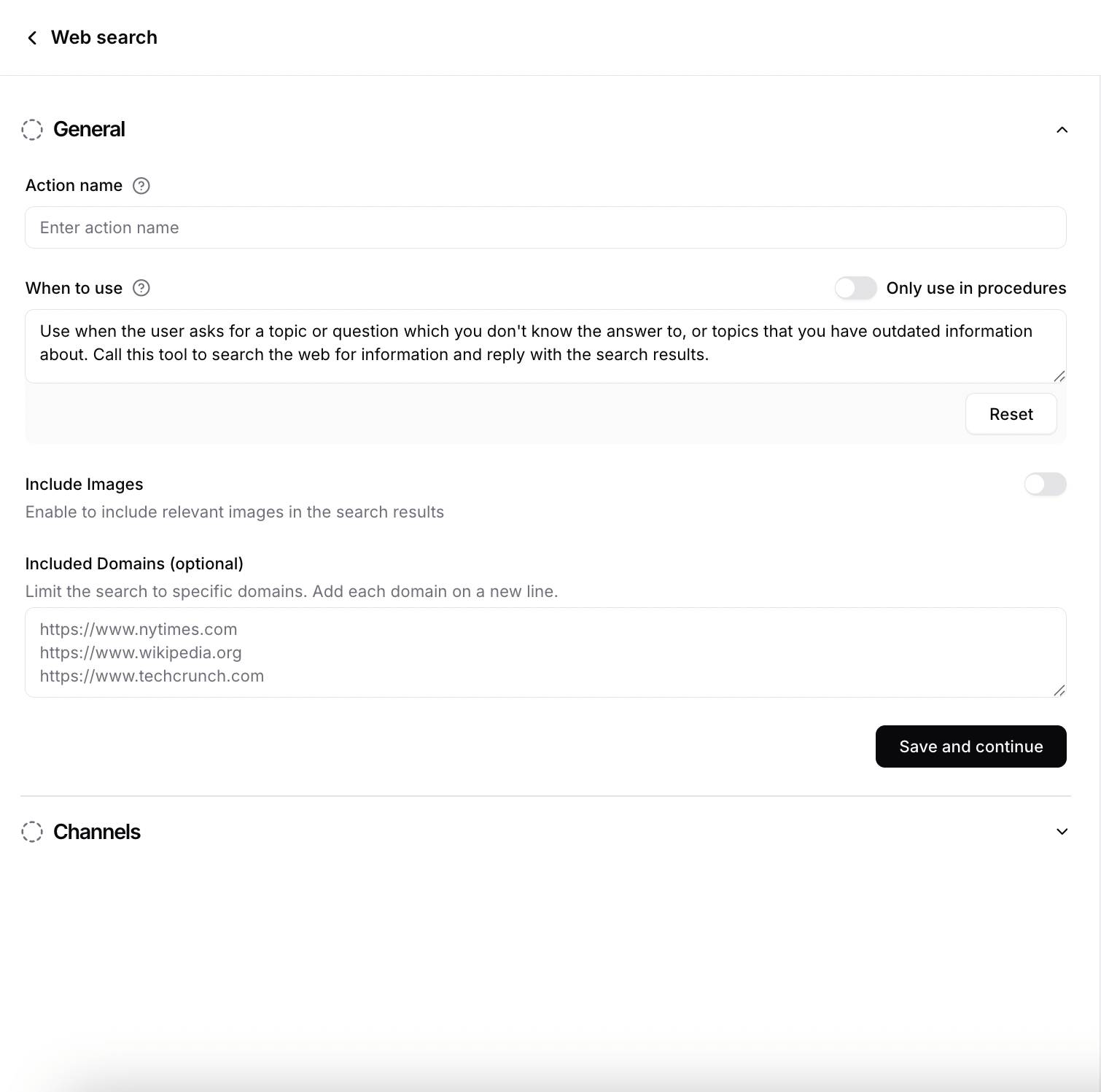
**Action Name:** Give the action a descriptive name.
**When to use:** Describe when the action should be triggered and the kind of customer queries that should trigger it. You can also add instructions the AI agent should follow once the action runs.
To restrict the action to [procedure](/docs/user-guides/chatbot/procedures/procedures-overview) steps only, turn on [**Only use in procedures**](/docs/user-guides/chatbot/actions/actions-overview#only-use-in-procedures). When it's on, the **When to use** field is hidden, because the AI agent no longer decides when to call the action.
Set **Include images** and **Included domains** as described in [Settings](#settings) below.
Use **Channels** to control where the action is available. Toggle the action on or off for each configured channel, then click **Save**. Some channels may be incompatible with the action and won't be available for selection.
Click **Save and enable**, then test it.
## Settings
**Include images:** Lets the AI agent include images in its replies to illustrate the answer it found.
**Included domains:** The specific domains the AI agent is allowed to search. Leave this empty and the AI agent searches the whole web; add domains and it searches only those. Adding sites related to your business field keeps results relevant and on-brand.
## How to create the action
Go to your [Chatbase dashboard](https://www.chatbase.co/dashboard/) and select your AI agent. Click **Build > Actions** in the left sidebar.
Click **Create action**, then select **Web Search**.
**Action Name:** Give the action a descriptive name.
**When to use:** Describe when the action should be triggered and the kind of customer queries that should trigger it. You can also add instructions the AI agent should follow once the action runs.
To restrict the action to [procedure](/docs/user-guides/chatbot/procedures/procedures-overview) steps only, turn on [**Only use in procedures**](/docs/user-guides/chatbot/actions/actions-overview#only-use-in-procedures). When it's on, the **When to use** field is hidden, because the AI agent no longer decides when to call the action.
Set **Include images** and **Included domains** as described in [Settings](#settings) below.
Use **Channels** to control where the action is available. Toggle the action on or off for each configured channel, then click **Save**. Some channels may be incompatible with the action and won't be available for selection.
Click **Save and enable**, then test it.
## Settings
**Include images:** Lets the AI agent include images in its replies to illustrate the answer it found.
**Included domains:** The specific domains the AI agent is allowed to search. Leave this empty and the AI agent searches the whole web; add domains and it searches only those. Adding sites related to your business field keeps results relevant and on-brand.
 Test the action by asking your AI agent a question your training sources don't cover, and confirm the answer reflects live information from the domains you allowed.
## Best Practices
Add the reference sites you trust to **Included domains** rather than leaving the AI agent to search the open web.
Write a specific **When to use** description so the AI agent searches only when your own sources fall short, instead of reaching for the web first.
Anything you control and can keep current belongs in a training source. Use web search for what you can't.
Test with questions your sources don't answer and check that the results are accurate and from the sites you expect.
Test the action by asking your AI agent a question your training sources don't cover, and confirm the answer reflects live information from the domains you allowed.
## Best Practices
Add the reference sites you trust to **Included domains** rather than leaving the AI agent to search the open web.
Write a specific **When to use** description so the AI agent searches only when your own sources fall short, instead of reaching for the web first.
Anything you control and can keep current belongs in a training source. Use web search for what you can't.
Test with questions your sources don't answer and check that the results are accurate and from the sites you expect.