> ## Documentation Index
> Fetch the complete documentation index at: https://chatbase.co/docs/llms.txt
> Use this file to discover all available pages before exploring further.
# Weebly
> Embed your Chatbase AI agent on a Weebly website using the iFrame embed code
## Overview
Adding your Chatbase AI agent to a Weebly website takes two things: the iFrame embed code from your Chatbase dashboard, and Weebly's **Embed Code** widget. Once pasted, your AI agent appears on the page.
Put your AI agent in front of every visitor to your Weebly site, answering questions without them leaving the page.
## Before you start
* A Chatbase account with an AI agent. If you haven't built one yet, follow [Your first AI agent](/docs/user-guides/quick-start/your-first-agent).
* A Weebly website you can edit.
## How to embed your AI agent
1. Navigate to your [dashboard](https://www.chatbase.co/dashboard/) and select the AI agent you wish to embed.
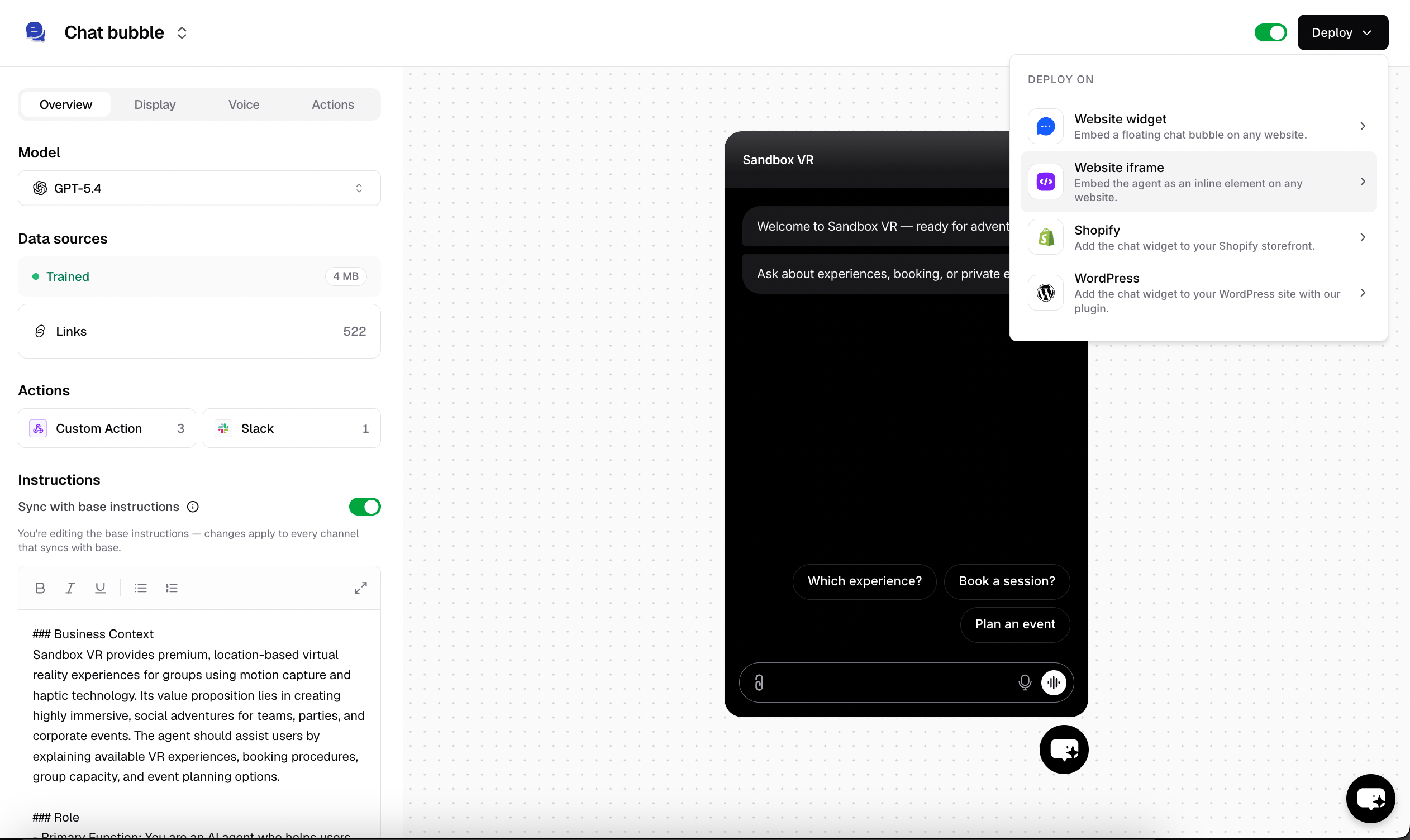
2. Click **Channels** in the left sidebar, then click **Manage** on the **Chat bubble** card (or **Setup**, if you haven't configured it yet).
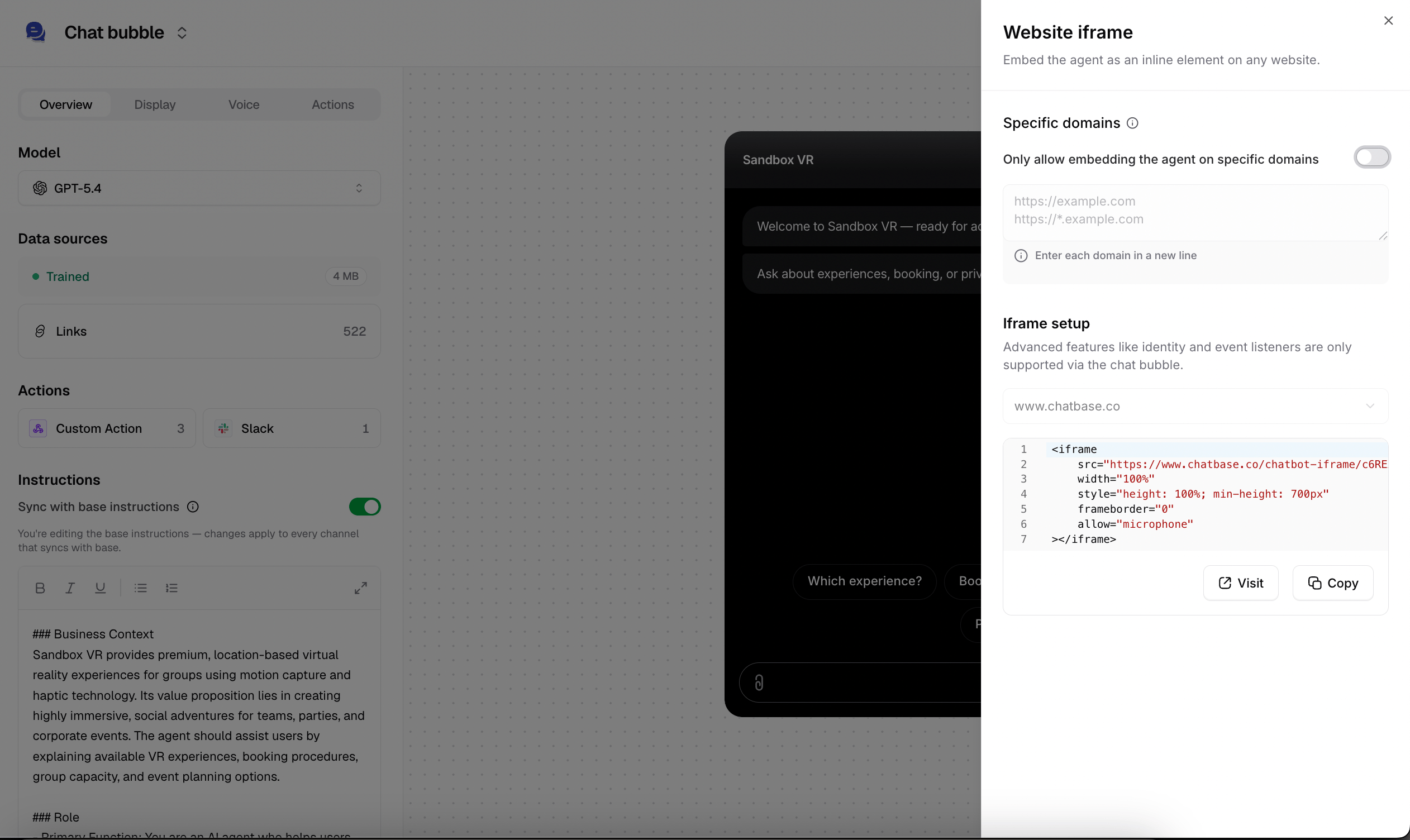
3. Click **Deploy** and select the **iFrame** embed type. Scroll down and click **Copy** to copy the provided HTML code.
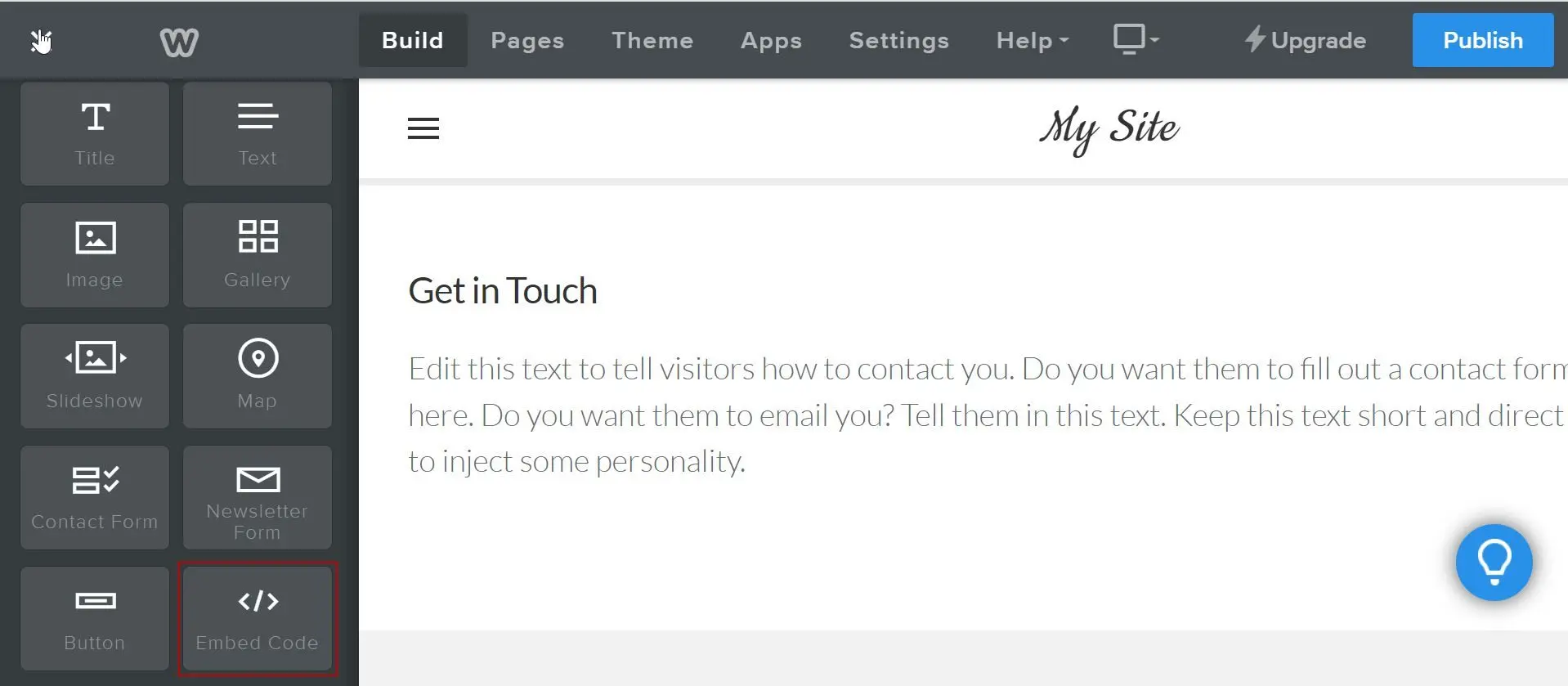
 Sign in to your Weebly account, head to the **Edit site** page, and select the page to edit.
From the Basic toolbar on the left side of the editing page, locate the **Embed Code** widget.
Sign in to your Weebly account, head to the **Edit site** page, and select the page to edit.
From the Basic toolbar on the left side of the editing page, locate the **Embed Code** widget.
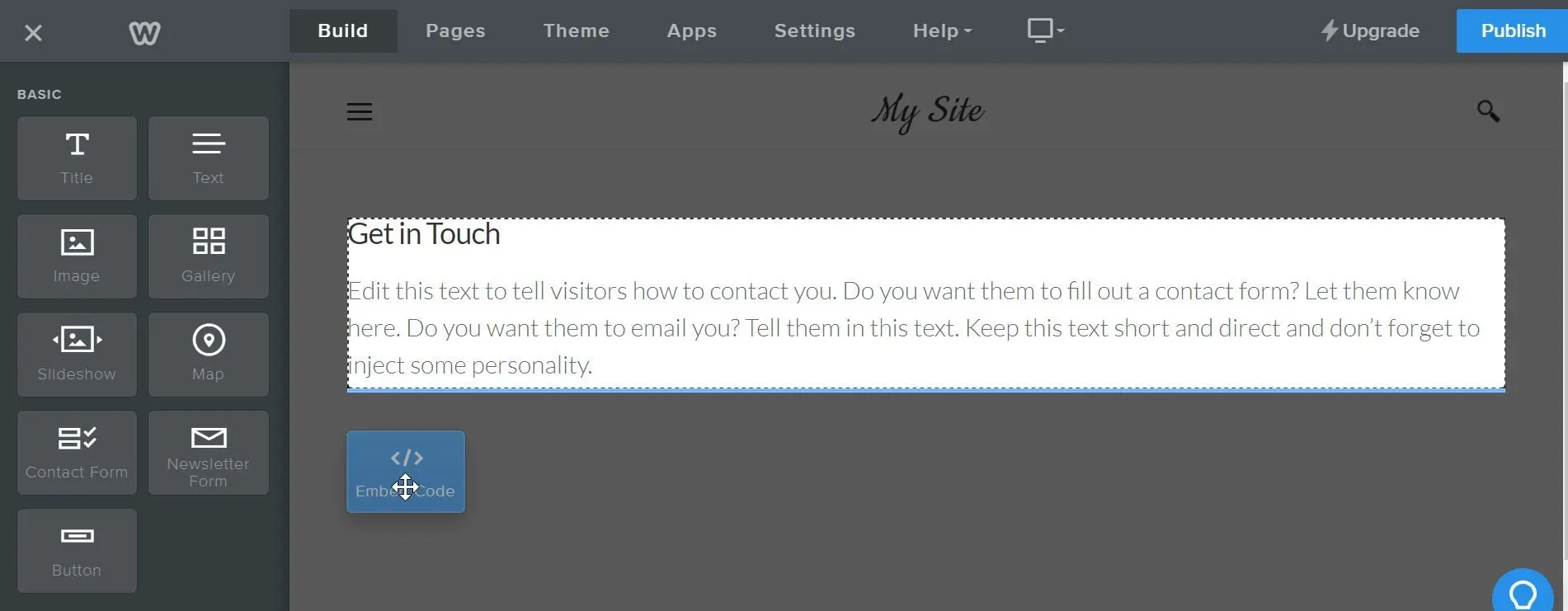
 Drag the **Embed Code** element to wherever you want your AI agent to appear on the page.
 You'll see a text element that says **Click to set custom HTML** where the widget was placed. Click the text, then click **Edit Custom HTML**, and paste your Chatbase embed code into the box.
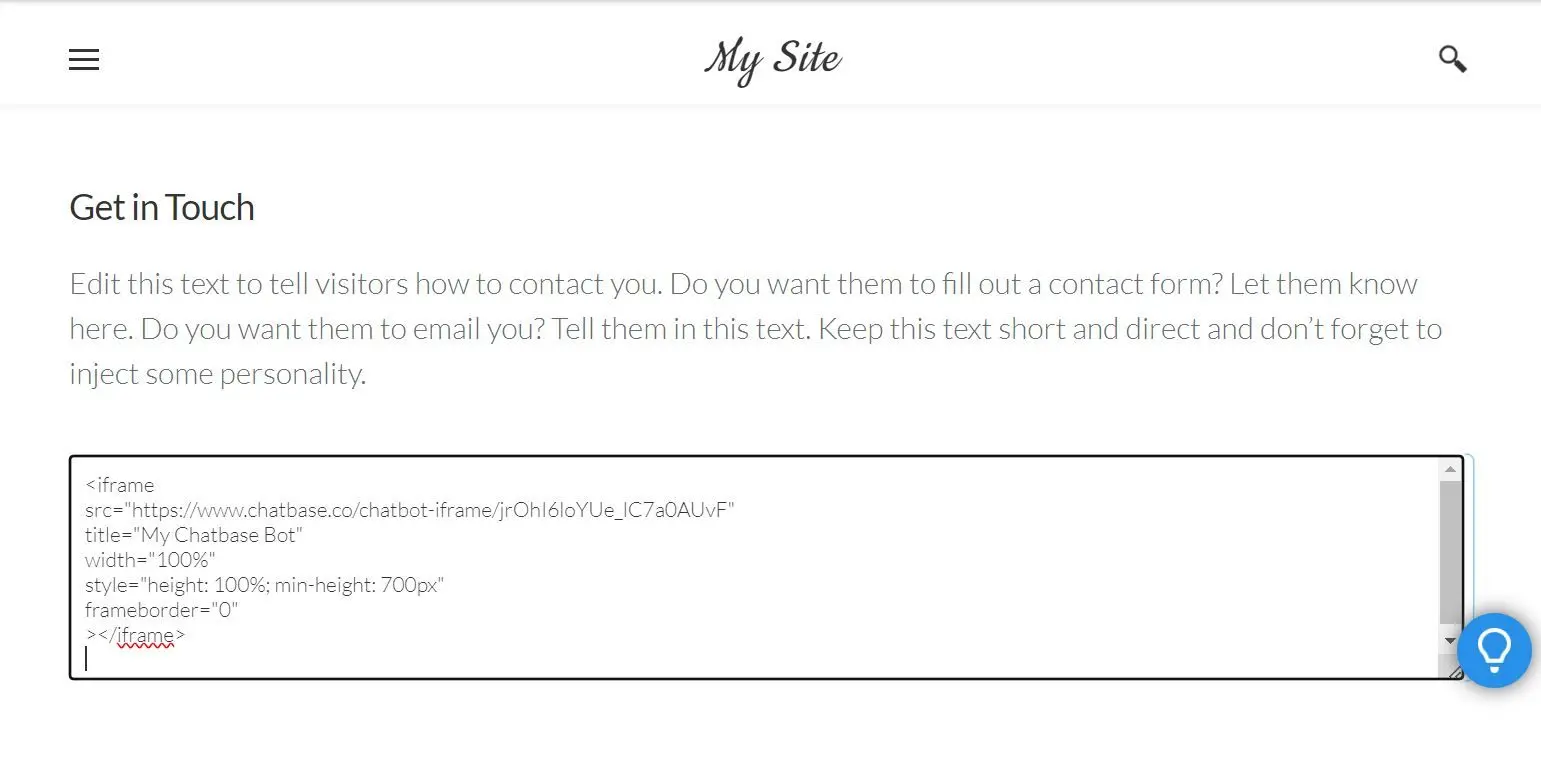 Click outside the element and confirm your AI agent appears on the page.
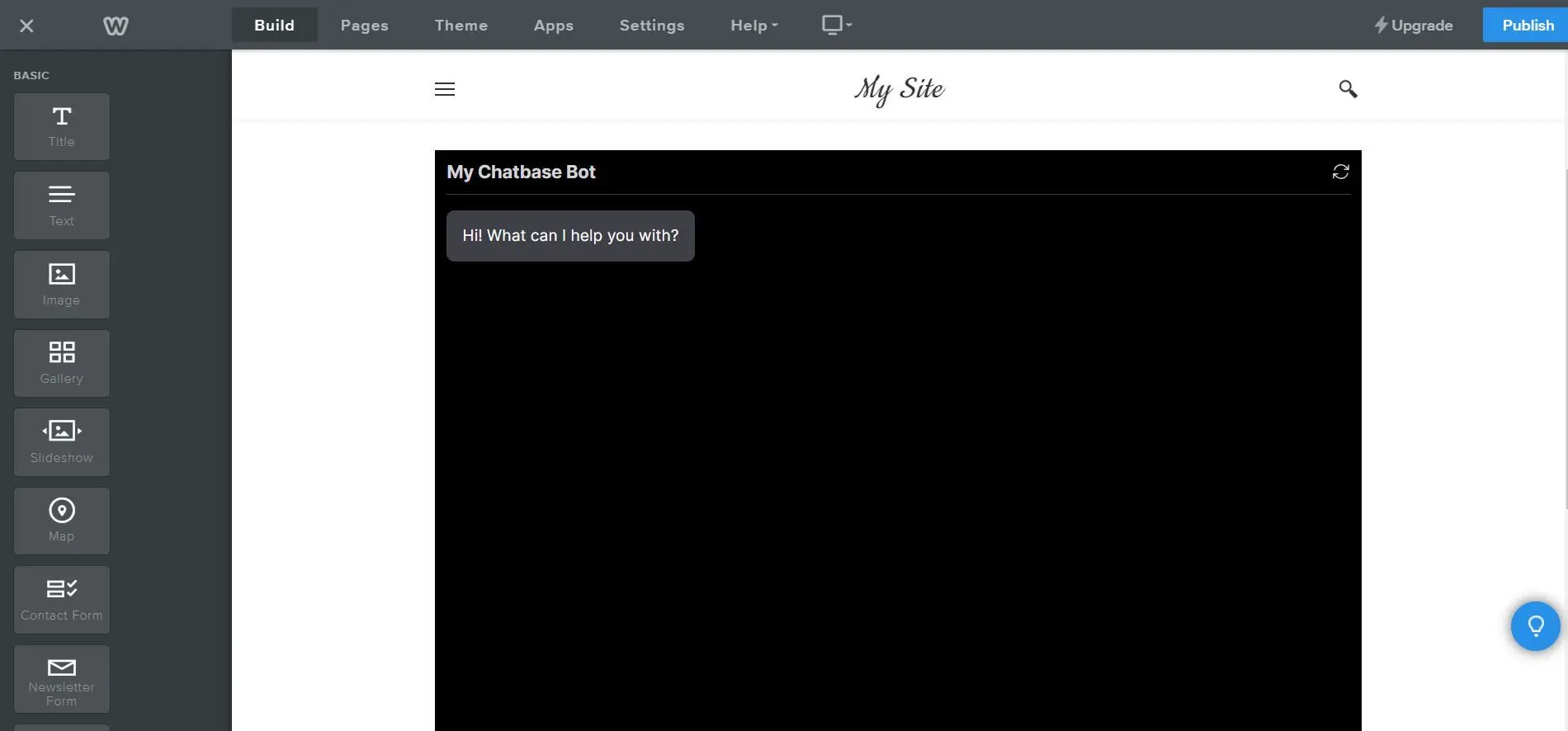 You can customize the appearance and colors of your AI agent on your Chatbase dashboard. Go to your **dashboard**, choose an AI agent, click **Channels** in the left sidebar, click **Manage** on the **Chat bubble** card, then open the **Display** tab to edit Content, Capabilities, Colors, Floating bubble, and Localization.
## Next steps
Match the widget to your brand colors, position, and copy.
You can customize the appearance and colors of your AI agent on your Chatbase dashboard. Go to your **dashboard**, choose an AI agent, click **Channels** in the left sidebar, click **Manage** on the **Chat bubble** card, then open the **Display** tab to edit Content, Capabilities, Colors, Floating bubble, and Localization.
## Next steps
Match the widget to your brand colors, position, and copy.