

Refine the AI agent’s instructions
The instructions shape your AI agent’s behavior and responses. Use them to set a persona, define tone, or specify the types of questions the AI agent can answer. Clear, precise instructions keep the AI agent aligned with your goals and your user experience. This is the default, which you can edit or replace:Bad instructions example
Bad instructions example
Good instructions example
Good instructions example
Friendly Support Agent Instructions
Friendly Support Agent Instructions
Improve readability of data sources
The quality of your AI agent’s responses depends heavily on the quality of the data sources you provide. Chatbase relies on readable text to generate accurate responses, so make sure the websites or PDFs you upload contain readable text. Some websites aren’t scraper-friendly. If your AI agent struggles to answer questions based on your website, this could be why. Work around it by copying the information in as text, or uploading it as a PDF.Chatbase can’t process images, videos, or other non-textual elements in documents.
Bad Product Example
Bad Product Example
Product: Widget123, colors not specified, possibly red or blue. Discount details unclear. Weight: Approx. 1 kg or 1.5 kg? Shipping: Delivery time uncertain, could be fast or delayed. Availability: Global shipping not confirmed. Packaging: Uncertain if it comes in a box. Assembly: Information unclear. Limited stock? Not confirmed.
Good Product Example
Good Product Example
Product: Widget123
Colors: Red, Blue
Discount: 50% off
Weight: 1.5 kg
Shipping: Estimated delivery within 1-2 weeks (depends on location)
Availability: Ships worldwide
Packaging: Comes in a standard-sized box
Assembly: Some assembly required
Order Now: Limited stock available, don’t miss out!
Colors: Red, Blue
Discount: 50% off
Weight: 1.5 kg
Shipping: Estimated delivery within 1-2 weeks (depends on location)
Availability: Ships worldwide
Packaging: Comes in a standard-sized box
Assembly: Some assembly required
Order Now: Limited stock available, don’t miss out!
Bad Description Example
Bad Description Example
The product is a thing. Its color is unspecified, and its size is unknown. The product might be useful, but it’s not clear. Its availability is uncertain, and shipping times are not mentioned. There might be a discount, but it’s not specified. Assembly instructions? Unclear. Get it soon? It’s unclear when stock might run out.
Good Description Example
Good Description Example
The Widget123 is a premium-quality product available in two colors: red and blue.
It offers a 50% discount, making it an excellent deal.
The product weighs 1.5 kg and is shipped worldwide.
You can expect delivery within 1-2 weeks, depending on your location.
The item comes in a standard-sized box and requires minimal assembly.
Act fast, stock is limited!
It offers a 50% discount, making it an excellent deal.
The product weighs 1.5 kg and is shipped worldwide.
You can expect delivery within 1-2 weeks, depending on your location.
The item comes in a standard-sized box and requires minimal assembly.
Act fast, stock is limited!
Add suggestable images
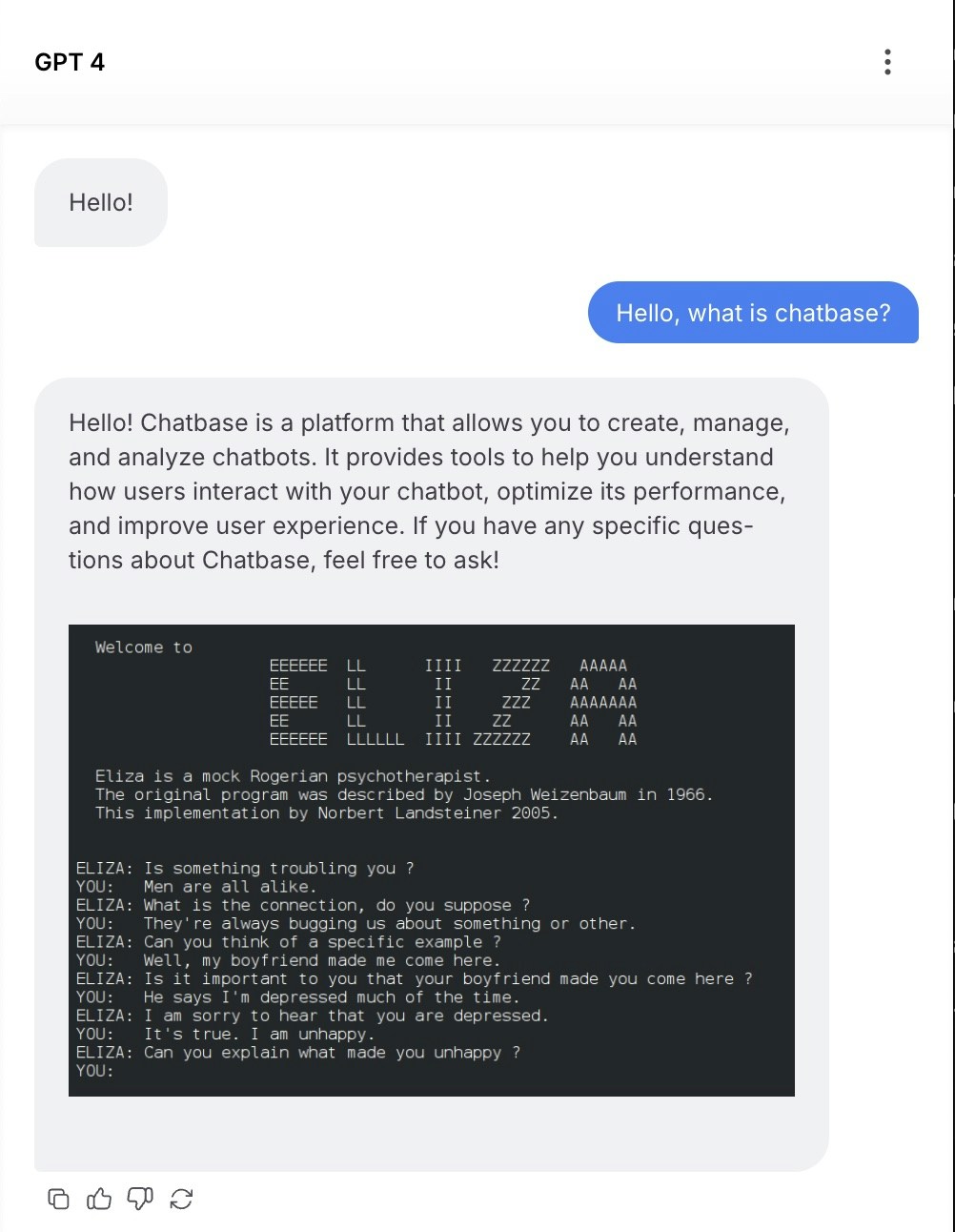
To display images in the Chat Bubble, have the AI agent send image links in markdown format. The URL must end in.png or .jpg for the image to render. You can also use a Widget.
You can include a line like this in your instructions to display an image after each response:
- Bad:
https://example.com/products/tent, a product page rather than an image, so nothing renders. - Good:
https://example.com/images/tent.png, a direct link to a.pngfile.
Choose the right AI model
Selecting the right model matters for performance. Match it to your use case, considering task complexity and speed: a model suited for structured data is ideal for data-heavy tasks, while a conversational model works best for customer support. Also consider scalability. Choose a model that can grow with your needs, handling more data while maintaining accuracy. Some models are better for real-time interactions, others excel in batch processing.Compare models side by side
To see how each model responds, go to Build > Instructions and click Compare in the header. You can run the same message against several models at once and judge:- Response quality and accuracy
- Response time and speed
- Tone and personality
- Handling of edge cases
- Bad: your AI agent gets a pricing question wrong, so you switch to the model with the highest message credit cost. If the right price isn’t in your Data Sources, the new model gets it wrong too, and each reply now costs more.
- Good: you first confirm the price is in your Data Sources and readable, then use Compare to send the same five real customer questions to two or three models, and pick the cheapest one that answers all of them well.
If you’re unsure which model to use, see the models comparison page.
Use Revise and Q&A to correct answers
Two features let you fix a wrong answer so it stays fixed. Add Q&A’s gives the AI agent exact answers for specific questions. On Build > Data Sources, click Add Q&A’s. When a user asks something similar to one of your saved questions, the AI agent replies with your predefined answer word-for-word. Revise corrects an answer after the fact. Monitor your AI agent’s responses under Activity > Conversations. When you find an answer you’d like to change, click the revise button and adjust it. The revised answer is saved as a Q&A data type, so the AI agent references it for future queries. Revised responses appear on Build > Data Sources with a Q/A badge.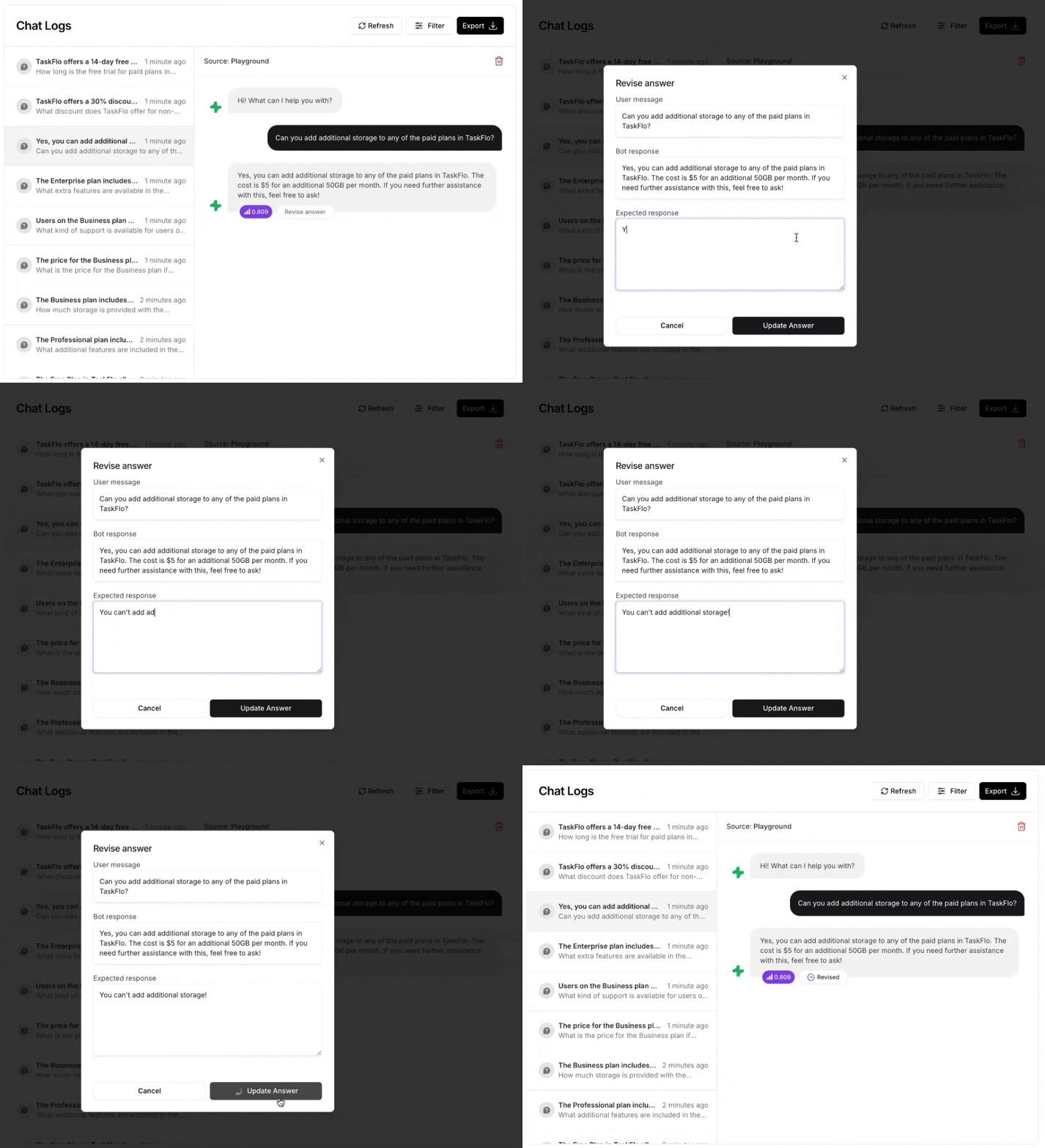
- Bad: Question “Refunds?” with the answer “See policy.” The question is too short to match the ways customers ask, and the answer gives them nothing.
- Good: Question “How do I get a refund for my order?” with the answer “You can request a refund within 30 days of delivery. Reply with your order number and we’ll start it for you.” Use your own policy in place of this sample.
Test before you launch
The Playground shows you one conversation at a time. Before customers see your AI agent, test it more systematically:- Ask real questions in the Playground. Use questions from your support inbox, worded the way customers write them, including typos and vague ones. The Playground runs your draft, so you can test changes before you publish.
- Compare settings side by side. On Build > Instructions, click Compare to send the same message to several models, temperatures, or instructions at once. See Compare area.
- Run Tests for the conversations that matter most. A test is a conversation between your AI agent and a simulated customer, graded automatically against a success criterion you write. Tests run against your published AI agent, so run them again after you publish each change and compare the pass rate.
Tests don’t reach your customers: the conversations aren’t saved to your chat logs, and Actions return a generic success instead of running, unless you set a read-only Action to Live. Tests use free monthly test credits first, then message credits. On the Free plan, tests use message credits from the start. See Test credits.
Design escalation before you need it
Every AI agent meets questions it can’t or shouldn’t answer. Decide in advance where those conversations go, so customers aren’t left stuck. Chatbase has two ways to hand a conversation to a person:
When you set up an escalation, write down when it should happen. The Escalations Action’s When to use field tells the AI agent when to create a ticket:
- Bad: “Escalate when needed.” The AI agent has to guess what “needed” means.
- Good: “Create a ticket when the customer asks for a person, reports a billing error, or still has the same problem after two answers. Confirm with the customer before creating the ticket.”
{{agentAvailable}} variable, which is true when at least one Helpdesk agent is available, so the AI agent can offer live chat when your team is online and a ticket when it isn’t.
To check that escalation works, write a test whose simulated customer asks for a person, and add the escalation Action under Expected Actions. The test fails if the AI agent never calls it. See Expected Actions.
Pre-launch checklist
Before you deploy your AI agent to customers, confirm that:- Every source on Build > Data Sources shows Synced, and the content is readable text.
- Your instructions state the AI agent’s role, its scope, a fallback reply for unknown questions, and when to hand off.
- Rules that must always apply are in the Guardrails instructions field.
- Questions that need an exact answer, such as pricing or policies, have a Q&A.
- Your most important conversations have Tests, and they pass.
- An escalation path is set up and tested.
- You’ve clicked Publish so your changes are live.
- Someone will review conversations in Activity after launch and fix wrong answers by adjusting whatever caused them, such as the instructions, Actions, Procedures, or Data Sources.
Frequently asked questions
Why is my AI agent making up answers?
Why is my AI agent making up answers?
Usually because its instructions don’t tell it to stay within its training data, or because the answer isn’t in its Data Sources. Add an instruction such as “Answer only from your training data” with a fallback reply, then add the missing content. A low temperature also keeps answers more focused. See Temperature.You can also ask Backstage to fix it for you. Describe the wrong answer in plain language, and Backstage can update the instructions, build an Action or a widget, or set up a Procedure. Its changes go into your draft, so click Publish to make them live.
How do I see which source an answer came from?
How do I see which source an answer came from?
Ask the same question in the Playground, then click Show sources below the chat. It lists the Data Sources the AI agent used for that reply, so you can update or remove the one behind a wrong answer.
How do I make my AI agent give the exact same answer every time?
How do I make my AI agent give the exact same answer every time?
Add a Q&A on Build > Data Sources. When a customer asks something similar to the saved question, the AI agent replies with your answer word for word. Use Q&A for pricing, policies, and anything else that must be worded exactly.
Should I switch models if my AI agent gives wrong answers?
Should I switch models if my AI agent gives wrong answers?
Not first. Most wrong answers come from instructions or Data Sources, and a different model can’t answer from content it doesn’t have. Fix those first, then use Compare to test models on the same questions. See Models comparison.
How do I know if my changes improved my AI agent?
How do I know if my changes improved my AI agent?
When should I use a Procedure instead of instructions?
When should I use a Procedure instead of instructions?
Use instructions for how the AI agent behaves in every conversation: its role, tone, and rules. Use a Procedure for a specific situation that needs ordered steps, such as a refund, an order issue, or an escalation, where you don’t want the AI agent improvising.
Next steps
Instructions
The full reference on instructions, Guardrails, model, and temperature.
Data Sources
Add, organize, and retrain on the content your AI agent learns from.
Models comparison
See how the available models differ before you commit to one.
Analytics
Track conversations and measure whether your changes actually helped.