

Best for:
Issues the AI agent can’t resolve and that don’t need an answer this second: anything your team can work as a ticket and follow up on.
- “I want to speak to a human”
- “Connect me to support”
- “This didn’t solve my issue”
- “I need help with my billing”
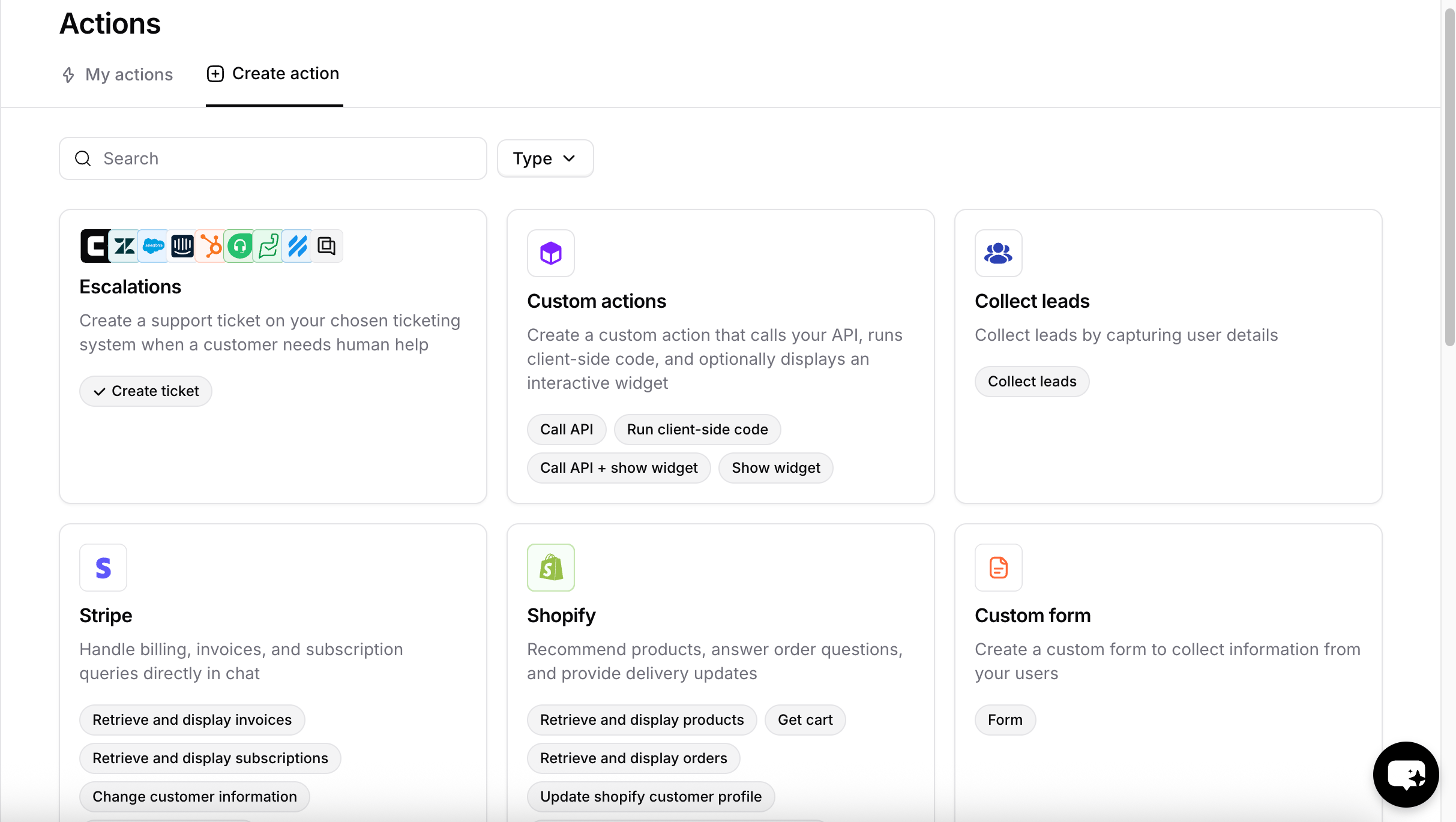
Escalations open a ticket for asynchronous follow-up. If you’d rather route the customer to a human in real time, use Chatbase live chat instead.
Before you start
The Action can only create tickets in a platform you have already set up. Only connected platforms appear in the Ticket Platform dropdown when you create the Action.- To use Chatbase Helpdesk, click Helpdesk inbox in the sidebar and enable it from there.
- To use a third-party platform, go to Integrations in the sidebar and connect it.
How to create the Action
1
Navigate to Actions
Go to your Chatbase dashboard and select your AI agent. Click Build > Actions in the left sidebar.
2
Create the Action
Click Create Action, then select Create ticket under Escalations.
3
Configure General Settings
Action name: A descriptive name that helps the AI agent understand when to trigger the Action, such as To restrict the Action to Procedure steps only, turn on Only use in Procedures. When it’s on, the When to use field is hidden, because the AI agent no longer decides when to call the Action.
create_ticket, create_ticket_refunds, or create_ticket_whatsapp.Ticket Platform: The platform where tickets are created. The options in the next section depend on this choice.When to use: Explain clearly when the AI agent should create a ticket. The field comes prefilled with a default you can edit, and Reset restores it:4
Configure details collection
This section changes based on the ticket platform you picked. See Details collection by platform below.
5
Add Tags
With Chatbase as the ticket platform, the Tags section lets the AI agent tag each ticket it creates. See Tags below, or click Skip to leave it empty.
6
Choose Channels
This Action is compatible with every channel except Slack. Zendesk Messaging is compatible only when the ticket platform is Zendesk. Toggle it on or off for each configured channel, then click Save. See Channels for what configured, unconfigured, and incompatible mean.
7
Enable and Test
Click Save & enable to make the Action available to your AI agent, then test it.
Details collection by platform
Chatbase Helpdesk
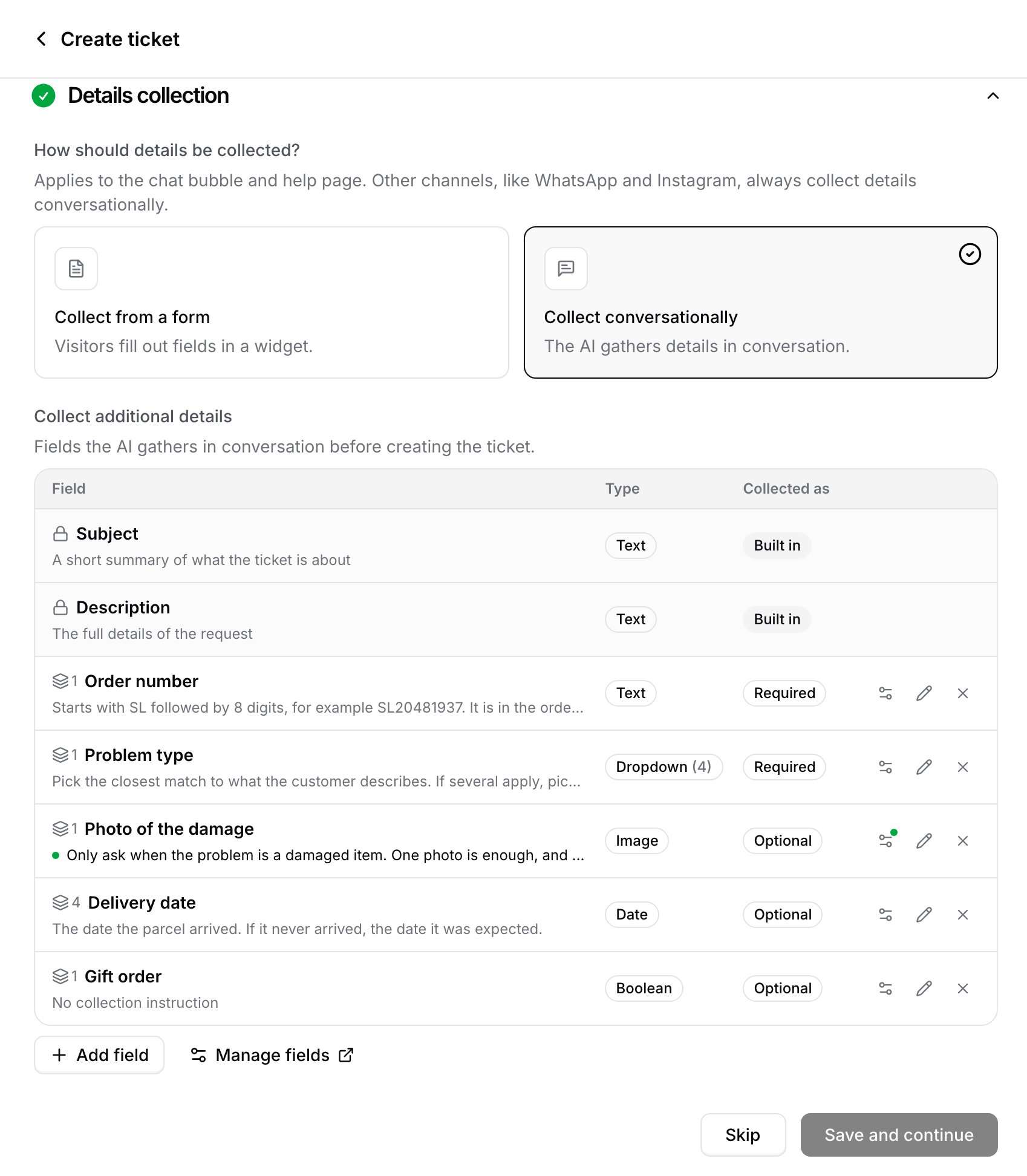
When the ticket platform is Chatbase, you choose how the AI agent collects the customer’s details before opening the ticket. How should details be collected? This setting applies to the Chat Bubble and Help Page. Other channels, such as WhatsApp and Instagram, always collect details conversationally.
Collect additional details: The fields collected before the ticket is created, in either mode. Subject and Description are built in and always collected. In the Chat Bubble and on the Help Page the visitor’s email is collected too, and a verified address is used without asking. Click Add field to add a custom field, such as a date, a dropdown, a number, or an image. Each field has a type and an optional collection instruction that tells the AI agent how to ask for it. Click a field’s Required or Optional badge, or its gear, to set whether it’s required and to customize its instruction for this Action only. Use the pencil icon to edit a field or the X to remove it from this Action.
A required field must be filled before the ticket is created, in either mode. Make it optional to let the ticket go through without it.
With Collect from a form, the form opens with the subject and description the AI agent drafted, and with any of your fields the visitor already answered in the conversation. Photos are always uploaded in the form. A boolean field is a yes or no choice and a dropdown lists its options. A ticket carries at most 5 files across image fields and attachments.
Tags
The Tags section lets the AI agent label each ticket it creates with tags from your tag list. It sits between Details collection and Channels. Click Add tag and pick a tag. Then describe when it applies in the When should the AI use this tag? box, for exampleThe customer reports a damaged or missing item. Every tag needs a description, up to 200 characters.
The AI agent weighs each description on its own and adds every tag that fits, so a ticket can get several tags or none. Tags are added as the ticket is created, before any triggers run, so a trigger that checks for a tag already sees them.
If the tag you need doesn’t exist yet, type its name and click Create “name”. Typing the exact name of an archived tag offers Restore “name” instead. Both need permission to manage tags. Without it, ask an admin to add the tag in Settings → Helpdesk → Tags.
Changes to the tag list carry over to the Action:
- Renaming a tag updates the Action too. You don’t need to edit it.
- Archiving a tag stops the AI agent from applying it. The tag stays on the Action with an archived badge until you restore it or remove it from the Action.
Zendesk
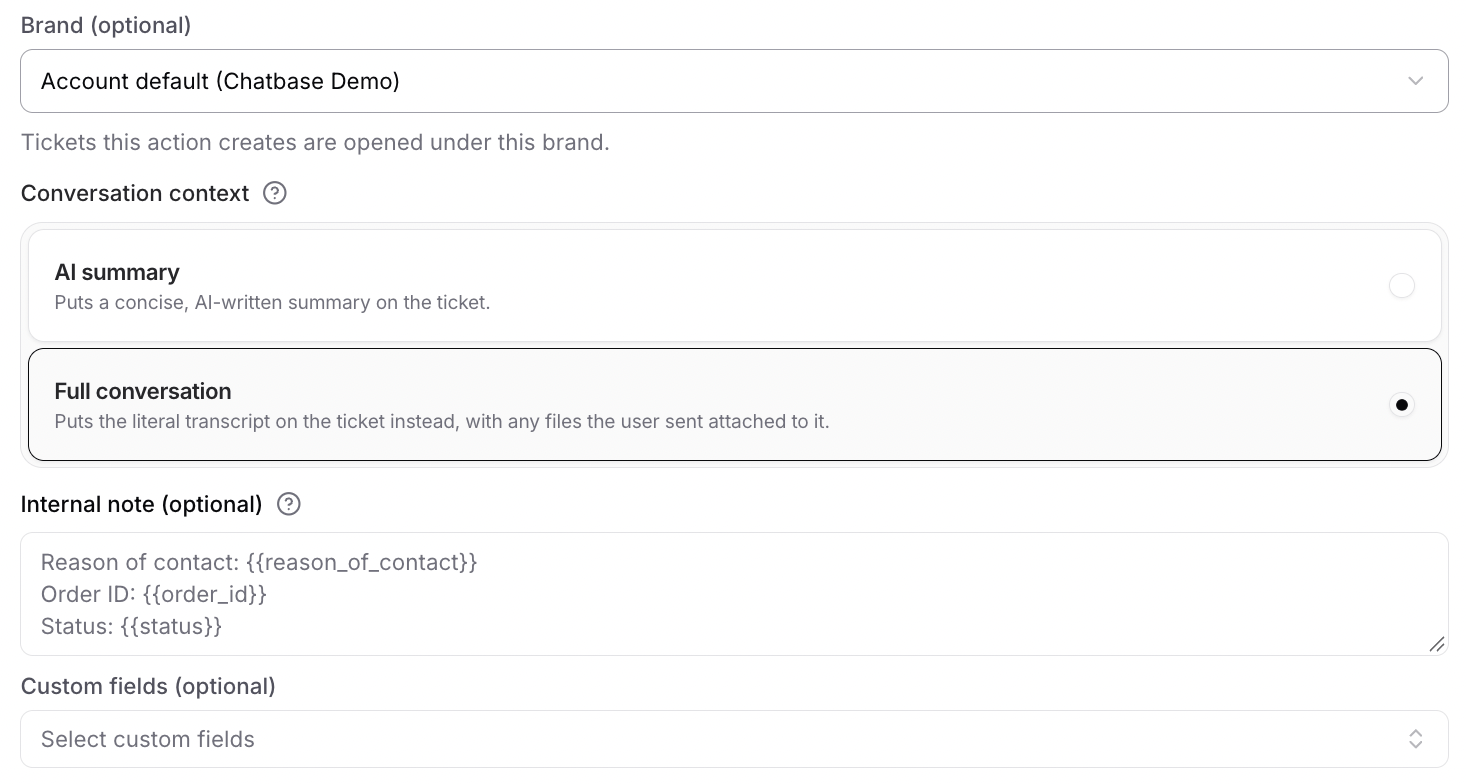
When the ticket platform is Zendesk, you control what goes on the ticket. Brand: The Zendesk brand the ticket will be created under. Select Default to use the brand’s default value at the time the ticket is created. Conversation context: What the ticket contains.
Internal note (optional): A private note added to the ticket for your team. Use variables in double curly braces to have the AI agent fill in details from the conversation. For example:
Other platforms
Salesforce, Intercom, Zoho Desk, Freshdesk, HubSpot, Help Scout, Gorgias, and Odoo have no platform-specific options. Complete the General and Channels sections and the AI agent creates the ticket with the customer’s details, an AI-written summary of the conversation, and a link to the full conversation in Chatbase.How it works
When the Action triggers, the AI agent:- Collects any details it still needs from the customer.
- Creates a ticket in the selected platform.
- Includes the customer’s information and the conversation on the ticket.
Test the Action by asking your AI agent to speak to a human, and confirm a ticket appears in your chosen platform with the details and conversation attached.
Handover with Chatbase Helpdesk
When the ticket platform is Chatbase, creating a ticket in the Chat Bubble, Help Page, Center Stage, Email, WhatsApp, Messenger, or Instagram hands the conversation to your team, the same way live chat works:- The AI agent stops replying, and the customer’s follow-up messages go to the ticket in the Helpdesk.
- Your team’s replies reach the customer in the same chat or thread.
- Closing the ticket hands the conversation back to the AI agent.
Email handover with Zendesk
On the Email channel with Zendesk as the ticket platform, the AI agent handles the email thread on its own until the customer asks to speak to a human. Creating the ticket then hands the conversation over to your team, and the AI agent stops replying to the thread until the ticket is resolved.
What this means in practice:
- Your team’s Zendesk replies reach the customer in the same email thread. There is no separate thread and no ticket notification for the customer to follow.
- Customer replies during the handover go to the Zendesk ticket, not to the AI agent.
- Resolving the ticket hands the thread back. Once the ticket is Solved or Closed, the AI agent answers the customer’s next email as usual.
Attachments
Attachments work both ways during an email handover:- From the customer: files and inline images the customer sends appear on the Zendesk ticket, up to 10 per email.
- From your team: files and inline images an agent adds to a Zendesk reply are sent to the customer as email attachments, up to 10 files and 25 MB per reply. Some file types, such as
.exe, can’t be sent by email.
On other ticket platforms and channels, the AI agent keeps replying after it creates the ticket.
Email handover is on by default for every AI agent and cannot be turned off.
When should the AI agent escalate?
The When to use field decides when the AI agent creates a ticket, so it decides how often customers reach your team. Escalate too eagerly and your team answers questions the AI agent could have handled. Escalate too late and customers get stuck. Good reasons to escalate:- The customer asks for a person. “I want to speak to a human” should always work.
- The AI agent can’t answer from its content. Have it confirm with the customer before it opens the ticket, as the default When to use does.
- The request needs something no Action can do. For example, no Shopify Action cancels an order or changes the shipping address on one, so those requests belong with your team.
- The topic needs a person by policy, such as legal complaints or account security.
create_ticket_refunds, or turn on Only use in Procedures and call it from a Procedure step. A Procedure can also branch on {{agentAvailable}} to offer live chat when a teammate is available and open a ticket otherwise.
Limitations
- The full transcript is only available for Zendesk. Every other platform receives an AI-written summary of the conversation and a link to the full conversation in Chatbase.
- The form collection mode applies to the Chat Bubble and Help Page only. Other channels always collect details conversationally.
- Tags are available on Chatbase Helpdesk only. Other ticket platforms don’t show the Tags section.
- An Action holds up to 5 tags. Add tag greys out at the limit. Remove a tag to make room for another.
Best Practices
Clear Escalation Criteria
Spell out when the AI agent should escalate and when it should keep trying, so customers aren’t handed off prematurely or left stuck.
One Action per Context
Create separate Actions for different contexts, such as
create_ticket_refunds and create_ticket_whatsapp, when they need different rules or fields.Collect What Your Team Needs
Add the fields your team would otherwise have to ask for, so the ticket arrives ready to work.
Require Sparingly
Every required field is another thing the AI agent must extract before it can open the ticket. Mark the rest optional.
Frequently asked questions
What does the customer see when the AI agent escalates?
What does the customer see when the AI agent escalates?
It depends on the ticket platform. With Chatbase Helpdesk, the AI agent collects the details you set up, from a form in the chat or by asking in the conversation, then creates the ticket and tells the customer that a ticket was opened. On the Chat Bubble, Help Page, Center Stage, Email, WhatsApp, Messenger, and Instagram, the AI agent then stops replying and your team’s replies show up live in the same chat. On other ticket platforms and channels, the AI agent keeps replying after it creates the ticket, except on email with Zendesk. See How it works.
What happens if no one on my team is available?
What happens if no one on my team is available?
The ticket is still created. With Chatbase Helpdesk, assignment follows the team’s assignment settings. If no agent is Available, the ticket stays unassigned in the Unassigned view until someone picks it up, unless the team uses Balanced or Round Robin assignment with Assign to next available shift on, which routes it to the scheduled agent whose shift starts soonest.
What's the difference between Escalations and live chat?
What's the difference between Escalations and live chat?
Escalations open a ticket for follow-up and work with Chatbase Helpdesk and third-party helpdesks. Chatbase live chat routes the conversation to a person in the Chatbase Helpdesk in real time. Use live chat for urgent issues when your team is staffed, and Escalations for anything that can wait.
Does the ticket include the full conversation?
Does the ticket include the full conversation?
Only on Zendesk, when Conversation context is set to Full conversation. Every other platform receives an AI-written summary of the conversation and a link to the full conversation in Chatbase, along with the customer’s details and any fields you collect.In Chatbase Helpdesk, click View conversation on the ticket to see the customer’s full chat with the AI agent before the ticket was created.
How does the conversation go back to the AI agent?
How does the conversation go back to the AI agent?
With Chatbase Helpdesk, close or cancel the ticket. The AI agent answers the customer’s next message, as long as no other ticket on the conversation is still open. See Handing the conversation back to the AI agent. On email with Zendesk, the AI agent takes the thread back once the ticket is Solved or Closed.