

You can create more than one Action of the same type. For example, Escalations on your website and Escalations on Instagram, in case they need separate When to use rules or different data to collect from the customer before opening the ticket.
Saving puts your changes in a draft. Your customers see them once you click Publish in the top-right corner. A few settings go live as soon as you save. See Drafts and versions.
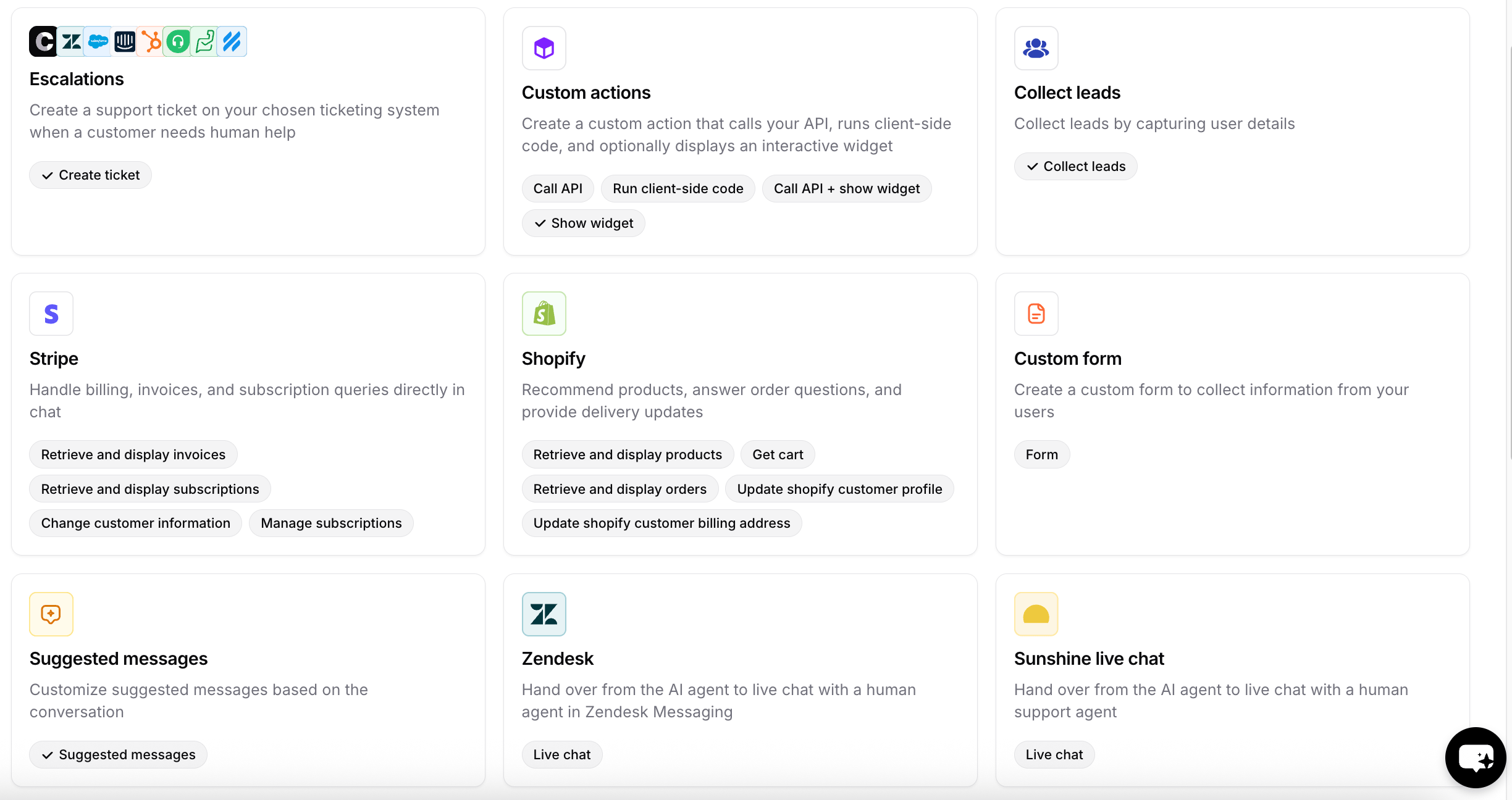
Available Actions
Support and handoff
Commerce
Lead capture
Scheduling
Other
How the AI agent decides to call an Action
An enabled Action is a tool the AI agent can use, not a script it must run. The AI agent can call an Action only when all of these are true:- The Action is enabled on your AI agent.
- The Action is turned on for the current channel. See Channels.
- The request matches the Action’s When to use instructions, or a Procedure step references the Action with
@action_name.
Write clear When to use instructions
The When to use field tells the AI agent when an Action applies, and a vague one is a common reason an Action never fires or fires at the wrong time. A descriptive Action name, such ascreate_ticket_refunds, also helps the AI agent understand what the Action is for.
Describe the situation in the phrases customers actually type, and say when not to use the Action if another Action could match the same request. For example, a When to use for a Shopify order lookup could read:
Example: a customer asks where their order is
This example uses the Shopify Retrieve and display orders Action (namedGet_Orders by default), enabled for the Chat Bubble.
1
The customer asks a question
A shopper on your store opens the Chat Bubble and types “Where is my order?”
2
The AI agent picks the Action
The AI agent checks which Actions are available on the Chat Bubble. The request matches the When to use of
Get_Orders, so the AI agent calls it.3
The AI agent identifies the order
If the shopper is signed in to your Shopify store, their orders are retrieved directly from their account. A guest is asked to verify the order with their checkout email and order number, or their phone number and order number. See Signed-in and guest customers.
4
The AI agent replies from the result
The Action pulls the order status directly from Shopify, and the AI agent writes its reply from it. A shipped order appears as Shipped, or On its way once the carrier reports it in transit.
Channels
Every Action has a Channels section in its configuration that controls where the Action is available. Channels appear in one of three states:
Configured and unconfigured describe your own setup, so the same Action shows a different split on different AI agents. Incompatible is a property of the Action itself: those channels never become selectable, no matter how you set the channel up.
Enabling an Action on a channel doesn’t force it to run there. It only makes the Action available, and the AI agent still decides when to call it based on your When to use instructions.
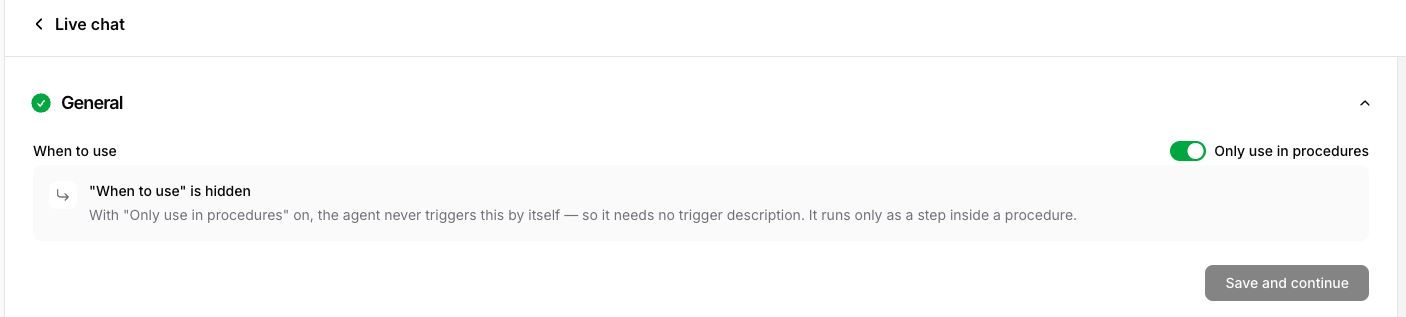
Only use in Procedures
Every Action has an Only use in Procedures setting in its configuration. Turn it on when you want the Action to run only as a step inside a Procedure, never on the AI agent’s own initiative. When enabled, the Action stays fully functional, but the AI agent won’t call it based on its own judgment; it fires only when a Procedure step references it with@action_name. Because the AI agent no longer decides when to use it, its When to use field is hidden.
Use it for high-control or sensitive tools (refunds, cancellations, escalations) that should fire only at the right point in a defined flow. See How Procedures run for how this behaves at runtime.
Actions vs. Procedures vs. instructions
For example, a Shopify return can run as a single Action the AI agent calls when a customer asks. If you want the AI agent to look up the order and ask for a photo before the return goes through, put those steps in a Procedure and turn on Only use in Procedures on the return Action. See Keeping high-stakes Actions on rails for a full example.
Credit usage
Actions use message credits based on your AI agent’s model. When the AI agent triggers an Action, it uses the model twice: once to run the Action, and once to write the reply from the result. So a reply that triggers an Action costs twice the model’s usual credits.
See Models comparison for how many credits each model uses.
Frequently asked questions
Why isn't my AI agent using an Action?
Why isn't my AI agent using an Action?
Check that the Action is enabled, turned on for the customer’s channel, and has a When to use that matches how customers phrase the request. If Only use in Procedures is on, an active Procedure must reference it with
@action_name. Some Actions have their own requirements: several Shopify Actions work only for signed-in customers.Can an Action fail?
Can an Action fail?
Yes. When an Action fails, the AI agent tells the customer it can’t complete the request, with wording that depends on the Action. An Action that depends on another system can return an error, for example a Custom Action whose response is larger than 20KB. Some Actions let you set what happens next: if a phone transfer can’t be completed, the AI agent says your failure message and keeps helping the caller. To review Action outcomes, filter Activity by Action result.
How many Actions can my AI agent have?
How many Actions can my AI agent have?
It depends on your plan. Hobby includes up to 5 Actions, Basic up to 8, and Business up to 12. On Enterprise, the limit is customizable.
Do Actions use extra message credits?
Do Actions use extra message credits?
Yes. A reply that triggers an Action uses the model twice, once to run the Action and once to write the reply, so it costs twice the model’s usual credits. See Credit usage.
How do I test an Action?
How do I test an Action?
Saving an Action puts it in your draft, and the Playground always uses your draft. Send a message that should trigger the Action and check the reply. When it works, publish it and run Tests with expected Actions to check that the AI agent calls the right Action. Tests run against your published AI agent, not your draft.